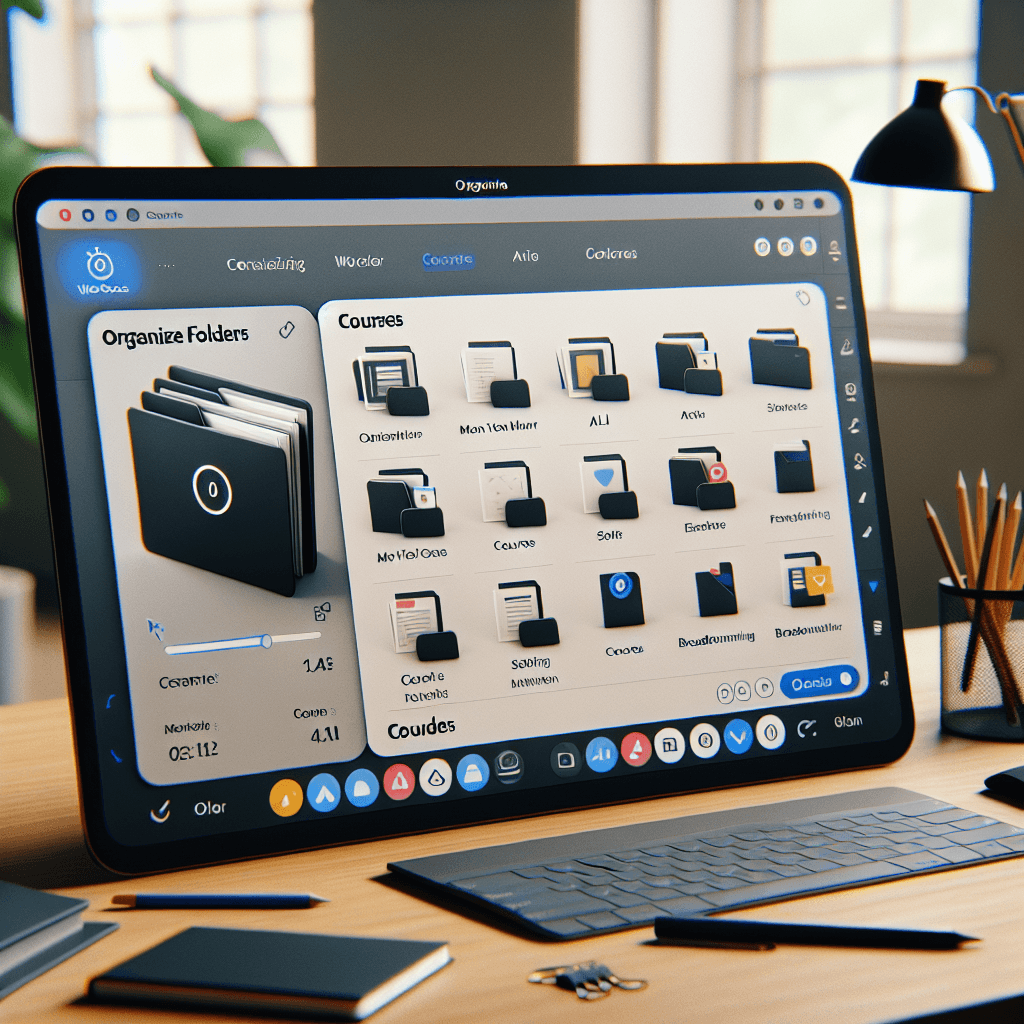
Getting Started

How to Create Folders in Skill Studio Workspaces
This guide helps you organize your course library by creating folders and nested hierarchies in Skill Studio AI workspaces. Use it when structuring training content for better navigation and management.
Before You Start
A Skill Studio AI account with access to a workspace.
Workspace admin, member, or contributor permissions to create and manage folders.
Existing courses or content in your library to organize.
Access to the Library page in your workspace dashboard.
Steps
Navigate to the Library page — Open your Skill Studio AI workspace and go to the Library page where your courses are listed to access the folder creation tools.
Click New Folder in the toolbar — Locate the "New Folder" button in the Library page toolbar and select it to open the folder creation dialog.
Enter a folder name — Type a descriptive name for the folder, ensuring it follows naming rules: no leading/trailing spaces, avoid special characters like ~"#.&*:<>?/{|}, under 255 characters, and unique within the parent folder.
Create the folder — Confirm the name and click Create; the folder appears in your library root or selected location.
Create nested subfolders — Navigate into the new folder, repeat steps 2-4 to add subfolders, supporting up to 10 levels of nesting for hierarchical organization.
Drag courses into folders — Select courses in the library, then drag and drop them into the target folder for quick organization.
Bulk move multiple courses — Select multiple courses using checkboxes, then use the Move button to choose a destination folder or create a new one on the fly.
Rename a folder — Right-click the folder or select its context menu (...), choose Rename, enter a new valid name, and confirm.
Set folder colors and icons — Access folder settings via the context menu to assign colors or icons for visual distinction in the library.
Archive a folder — Use the folder settings to archive it, hiding the folder and contents without permanent deletion for cleanup.
Tips & Best Practices
Use breadcrumb navigation at the top of the library to quickly move between folder levels.
Leverage the global search bar to find courses across all folders without navigating hierarchies.
Organize by department, course type, or language (e.g., "Sales Onboarding", "Compliance EN") for multi-language delivery.
Apply colors consistently: blue for active training, gray for archived compliance modules.
Troubleshooting
Can't create folder due to name error
Check for invalid characters, duplicates, or length; review naming rules and try a simpler name like "Training-Q1".
Folders not visible to team members
Ensure permissions are set at workspace level; viewers can only browse, not create or edit.
Drag and drop not working
Refresh the Library page or use bulk Move command as an alternative for relocating courses.
Exceeds nesting limit
Limit to 10 levels; flatten structure by merging subfolders or using search for deep navigation.
" width="127.00000416148792px"><path d="M 34.636 96.693 C 34.636 104.66 34.81 110.758 35.012 115.183 C 35.329 122.001 40.986 127 47.625 127 C 54.264 127 59.921 122.001 60.238 115.183 C 60.44 110.758 60.614 104.66 60.614 96.693 C 60.614 88.727 60.44 82.628 60.238 78.203 C 59.921 71.386 54.264 66.386 47.625 66.386 C 40.986 66.386 35.329 71.386 35.012 78.203 C 34.81 82.628 34.636 88.727 34.636 96.693 M 30.307 34.636 C 22.34 34.636 16.242 34.81 11.817 35.012 C 4.999 35.329 0 40.986 0 47.625 C 0 54.264 4.999 59.921 11.817 60.238 C 16.242 60.44 22.34 60.614 30.307 60.614 C 38.273 60.614 44.372 60.44 48.797 60.238 C 55.614 59.921 60.614 54.264 60.614 47.625 C 60.614 40.986 55.614 35.329 48.797 35.012 C 44.372 34.81 38.273 34.636 30.307 34.636 M 96.693 92.364 C 104.66 92.364 110.758 92.19 115.183 91.988 C 122.001 91.671 127 86.014 127 79.375 C 127 72.736 122.001 67.079 115.183 66.762 C 110.758 66.56 104.66 66.386 96.693 66.386 C 88.727 66.386 82.628 66.56 78.203 66.762 C 71.386 67.079 66.386 72.736 66.386 79.375 C 66.386 86.014 71.386 91.671 78.203 91.988 C 82.628 92.19 88.727 92.364 96.693 92.364 M 92.364 30.307 C 92.364 22.34 92.19 16.242 91.988 11.817 C 91.671 4.999 86.014 0 79.375 0 C 72.736 0 67.079 4.999 66.762 11.817 C 66.56 16.242 66.386 22.34 66.386 30.307 C 66.386 38.273 66.56 44.372 66.762 48.797 C 67.079 55.614 72.736 60.614 79.375 60.614 C 86.014 60.614 91.671 55.614 91.988 48.797 C 92.19 44.372 92.364 38.273 92.364 30.307" fill="rgb(143, 191, 250)" height="127.00000416148792px" id="QYbpY2x7X" width="127.00000416148792px"/><path d="M 46.465 0 C 38.316 0 31.75 6.685 31.75 14.79 C 31.75 22.208 37.341 28.823 45.166 28.864 C 48.482 28.879 51.797 28.759 55.104 28.503 C 57.852 28.296 60.046 26.128 60.287 23.382 C 60.576 20.054 60.643 16.614 60.605 13.537 C 60.507 5.735 53.975 0 46.465 0 M 0 80.535 C 0 88.684 6.685 95.25 14.79 95.25 C 22.208 95.25 28.823 89.659 28.864 81.834 C 28.879 78.518 28.759 75.203 28.503 71.896 C 28.296 69.148 26.128 66.954 23.382 66.713 C 20.108 66.447 16.822 66.341 13.537 66.395 C 5.735 66.493 0 73.025 0 80.538 M 80.535 127 C 88.684 127 95.25 120.315 95.25 112.21 C 95.25 104.792 89.659 98.177 81.834 98.136 C 78.518 98.121 75.203 98.241 71.896 98.497 C 69.148 98.704 66.954 100.872 66.713 103.618 C 66.447 106.892 66.341 110.178 66.395 113.463 C 66.493 121.265 73.025 127 80.538 127 M 127 46.465 C 127 38.316 120.315 31.75 112.21 31.75 C 104.792 31.75 98.177 37.341 98.136 45.166 C 98.121 48.482 98.241 51.797 98.497 55.104 C 98.704 57.852 100.872 60.046 103.618 60.287 C 106.946 60.576 110.383 60.642 113.463 60.605 C 121.265 60.507 127 53.975 127 46.465" fill="rgb(40, 89, 197)" height="126.99999098710076px" id="T8KewQXUv" width="126.99999098710093px"/></g></svg>)